cricketBoard7 is the cricket scoreboard software for LED displays, projectors and TV graphics. These 23 lessons, 2 h 1 min in all, go through the program page by page: pick a lesson below and it plays here. The videos have no narration; on-screen captions explain each step.
01.01 Main Window and Game Page (Menu strip, display modes, designs, logo)
A first tour of cricketBoard7: the main window with its title bar and menu strip, the four display modes of the board, the design gallery, and the top of the Game page with the logo, the match title and venue lines and the two team names.
01.02 The Toss and the First Innings (Break panel, toss, openers, bowler)
How a cricket match starts in cricketBoard7: the break panel before the match, entering the toss, starting the first innings, and choosing the two opening batters and the opening bowler from the squads.
01.03 The Ball Pad (Runs, boundaries, strike and overs)
Ball-by-ball scoring in cricketBoard7: entering dot balls, runs, fours and sixes on the ball pad, how the strike changes, the This Over strip, the end of the over and the bowler of the next over, Swap, End Over and Undo.
01.04 Extras and Wickets (Wides, no-balls, free hit, Wicket dialog)
Extras, the free hit and wickets in cricketBoard7: wides, no-balls, byes and leg byes on the ball pad, the free hit after a no-ball, all-run fours with the Run toggle, and the Wicket dialog with the dismissal, the delivery, the fielder and the incoming batter.
01.05 The More Menu (Overthrows, retire, DRS, penalties, DLS)
The More menu of the cricketBoard7 Game page: overthrows with Runs Run, retirements, timed out, DRS reviews, penalty runs, the floating powerplay and fielding timeouts, days and sessions, declarations, DLS revised targets and par scores, and ending a match with a result of your choice.
01.06 Innings Break, Chase and Result (Target, equation, last over, result)
The end of an innings and the chase in cricketBoard7: the last ball of the first innings, the innings break, starting the second innings, the target, the equation and the required run rate on the board, the last over and the result of the match. Plus the Super Over after a tie.
01.07 Clock and New Match (Timer, countdown, time of day, reset)
The clock of cricketBoard7: the time of day, a timer and a countdown for breaks, Play and Pause, typing a time. Then New Match: the question before the reset, what a new match resets and what it keeps.
01.08 Formats and Match Rules (Disciplines, playing conditions, changes)
Formats and match rules in cricketBoard7: the six disciplines (Test / First-Class, One-Day, T20, The Hundred, T10, Custom), every playing condition of the Match Rules window, changing a rule during a match, changing the discipline, and the tools for two-innings and interrupted matches.
01.09 Manual Mode (Typed scores, quick buttons, status line)
Manual mode of cricketBoard7: when you cannot enter every ball, type the team scores and overs, the batting team, the target, the batters, the bowler and a status line, and keep the score up to date with the quick buttons. The run rates and the equation are worked out for you.
01.10 Tool Icons of the Game Page (Language, remote, NDI, keyboard, media)
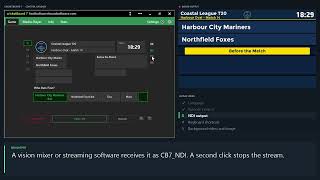
The tool icons of the cricketBoard7 Game page: the shortcuts to the Language and Remote Control pages, the NDI output, the Keyboard Hook Manager with the global keyboard shortcuts of the number pad, and the background video and middle image layers of the board.
02 Media Player (Playlists, clips and videos on the board)
How to use the Media Player of cricketBoard7: playlists 1 to 20, the clip list, Add Clip and Delete Clip, playing one clip with Play, Pause and Stop, running a playlist with Start and Finish, Return to Scoreboard, sound, auto repeat, the display mode and the URL page for web pages.
03.01 Info Page, Banner and Announce (Editors, clock and countdown)
A tour of the Info page of cricketBoard7: what every button opens, then the Banner with its text lines, memories, sponsor logo, background, clock and countdown, and the full-screen Announcement with its styles.
03.02 Squads, Sponsors and Pictures (Squad lists, sponsors, picture show)
How to keep the squads of cricketBoard7 - the playing XI in batting order, substitutes, short names, roles, captain and wicketkeeper - how to manage the sponsor logos, how to run a slideshow of the player pictures on the board, and where to set the background of the info screens.
The cricket info screens of cricketBoard7, part 1: the moments of the match - the latest wicket, the latest four or six, milestones, the current partnership, DRS reviews and the powerplay - and how to show and hide a screen.
The cricket info screens of cricketBoard7, part 2: the full-screen scorecards - batting card, bowling card, fall of wickets, extras and the innings summary - for the current or any earlier innings, and the team lists of both XIs.
03.05 Info Screens 3: Match and Status (Toss, target, result, status card)
The cricket info screens of cricketBoard7, part 3: the toss, the target and equation of a chase, the result with the Player of the Match, the strategic timeout, the status card for rain, bad light or breaks with a countdown, the officials and the fixtures.
04 The Live Scorecard (Batting, bowling, extras, fall of wickets)
The Stats tab of cricketBoard7: the full scorecard of every innings, built from the deliveries you enter - batting and bowling tables, extras, the total and the fall of wickets - refreshed live while you score.
Sponsored mode in cricketBoard7: the Standard scoreboard with a sponsor band below or above it. The band shows an endless row of sponsor images or one of four scrolling texts. How to switch to the mode, fill the band, change its style, font and colours, and set the location and the height of the band. Guide chapters 7.4 and 13.3.
05.02 Advertisement Mode (Banners, media area, camera and screen capture)
Advertisement mode in cricketBoard7: the board is shared by a scoreboard column, up to two banners and a large media area for clips, a camera, an NDI source or a part of the screen. The Media Player, Camera, Screen Capture, Banner and Settings tabs of the Ad page: playlists, sources, the layout of the board and the content of the banners. Guide chapters 7.5, 13.7 and 13.8.
05.03 Chroma Key (A keyed scorebug and lower thirds for your vision mixer)
Chroma Key mode in cricketBoard7: a compact scorebug and lower thirds on a plain key colour, ready to be keyed over the live picture by a vision mixer, vMix or OBS. The CK page: scorebug on and off, the cricket match screens as lower thirds, clips, camera and screen capture behind the graphics, and the key colours. Guide chapters 7.6 and 9.8.
06.01 Settings: License and Screen (Licence key, USB licence, screen setup)
The Settings page of cricketBoard7, part 1: the Settings tabs, the License page with the Computer ID, the licence key, the licence terms, License Info, Demo mode and the USB licence, and every row of Screen Properties. Guide chapters 3 (Licensing) and 18 (Settings).
06.02 Board Design Editor (Screens, elements, position, colours and fonts)
The board design editor of cricketBoard7: screens and elements, Location and Style values, moving an element and putting it back, colours and fonts, Save Design As and Factory Settings. Guide chapter 8 (Designs) and 18.1 (Settings).
06.03 Remote Control and Language (Phone page, PIN, language and titles)
Remote control and language settings of cricketBoard7: the phone page over the network, address and QR code, PIN, Internet access, the HTTP API, what the phone page offers, the program language, its texts and the titles. Guide chapters 14 (Remote control) and 17 (Languages).
 6:05