 5:38
01.01 The Game Page
A first look at arenaBoard7, the lacrosse scoreboard software: the main window, the menu bar, the Game page, team names, team logos and the two free text lines of the board.
arenaBoard7 22 video lessons
arenaBoard7 is the lacrosse scoreboard software for LED displays, projectors and TV graphics. These 22 lessons, 2 h 33 min in all, go through the program page by page: pick a lesson below and it plays here. The videos have no narration; on-screen captions explain each step.
The Game Page
5:38
A first look at arenaBoard7, the lacrosse scoreboard software: the main window, the menu bar, the Game page, team names, team logos and the two free text lines of the board.
 6:26
How to keep the score, run the match clock and change periods in the arenaBoard7 lacrosse scoreboard: the score arrows, typing a score, Play / Pause and Stop, setting the clock by typing, the end of a period, the period buttons and the period label.
 6:22
The shot clock and the team timeouts of the arenaBoard7 lacrosse scoreboard: the two shot clock reset buttons, clearing and typing the shot clock, how it runs with the match clock, starting and ending a timeout, the timeout length and correcting the timeouts taken.
 6:12
Player penalties and the shootout in the arenaBoard7 lacrosse scoreboard: the player number, the Select Player list, the three penalty buttons, how penalties run with the clock, penalties ended by a goal, cancelling and clearing penalties, and the shootout with its scored and missed marks.
 6:51
The four lacrosse disciplines of arenaBoard7 and the Period & Penalty Settings window: Field, Women's, Sixes Lacrosse and Intercrosse, period lengths and labels, penalty lengths, Max Penalty Player, End Penalty on Goal, Stop Chronometer on Goal, timeout and shot clock values.
 6:07
The Game page tools of the arenaBoard7 lacrosse scoreboard: a background video and a middle image behind the board, the sound switch, the design gallery, the NDI output, and the shortcuts to the remote control, the language page and the keyboard shortcuts.
 7:03
How to use the Media Player of the arenaBoard7 lacrosse scoreboard: playlists, adding and removing clips, playing a single clip with pause and stop, running a whole playlist, returning to the scoreboard, display mode, sound, auto repeat, web pages from the URL list and starting a playlist by remote command.
 7:20
The Info page of arenaBoard7, the lacrosse scoreboard software: an overview of its buttons, then the full-screen Banner with presets, a live clock and a countdown, and the Announce screen with team logo, text styles and colours.
 6:46
How to show a goal screen with arenaBoard7, the lacrosse scoreboard software: choose the team and the scorer, the minute, Goal or Penalty Goal, the ball animation, the player photo, the sponsor logo and the background, and add the goal to the match timeline.
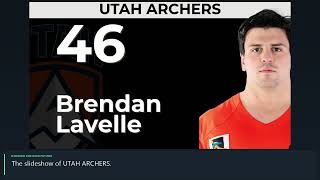 6:36
How to keep the player lists of both teams in arenaBoard7, the lacrosse scoreboard software, and put the team lists, the player slideshow and the referees on the board, with team colours and the background of these screens.
 6:19
How to show time penalties and red cards with arenaBoard7, the lacrosse scoreboard software: the penalty types of each discipline, the penalised player and his photo, sponsor and background, the match timeline and the red card counters of the scoreboard.
 6:43
How to show substitutions with arenaBoard7, the lacrosse scoreboard software: one player in and one out with photos, the minute and the match timeline, and several substitutions of one team on one screen with Multiple.
 4:47
How to keep the sponsor logos of the info screens and the saved squads of the Team Database in arenaBoard7, the lacrosse scoreboard software: order, default sponsor, loading a squad into the match and renaming it.
 7:04
The Stats page of arenaBoard7, the lacrosse scoreboard software: how goals, penalties and substitutions get into the match timeline, how to edit and filter it and show it on the board, and the team statistics table with its bars.
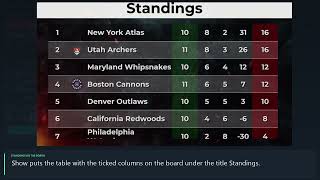 6:11
The league tables of arenaBoard7, the lacrosse scoreboard software: edit the Standings and choose their columns, enter Results and Fixtures with heading rows and team logos, and show each table on the board.
 7:45
Sponsored mode in the arenaBoard7 lacrosse scoreboard: the scoreboard with a sponsor band at the bottom or the top. Sliding sponsor logos, the sponsor list, the logo style, four scrolling texts with their style and colours, and the position and height of the band.
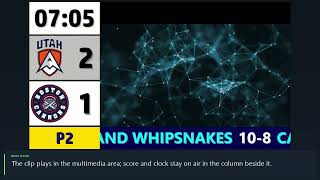 10:47
Advertisement mode in the arenaBoard7 lacrosse scoreboard: the board is shared by a scoreboard column, up to two banners and a large multimedia area. The layout settings, the media playlist, camera and screen capture, and the banners with sponsor logos, scrolling text or their own clips.
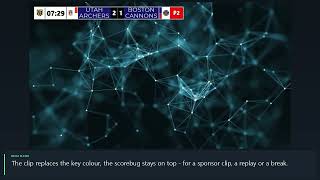 7:34
Chroma Key mode in the arenaBoard7 lacrosse scoreboard: a compact scorebug on a solid key colour, ready to be keyed over the camera picture by a vision mixer, vMix or OBS. The CK page, the scorebug, clips, camera and screen capture behind the graphics, and the key colours.
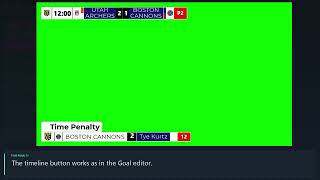 7:03
The lower thirds of the Chroma Key mode in the arenaBoard7 lacrosse scoreboard: Goal, Time Penalty, Red Card and Substitution graphics at the bottom of the CK board, the minute from the match clock, and the match timeline on the CK board.
 8:07
The Settings page of the arenaBoard7 lacrosse scoreboard, part 1: the Settings tabs, licensing with a PC key or a USB stick, the licence terms and the License Info box, what DEMO mode limits, and Screen Properties - board position and size, periods, background video opacity, score separator and picture duration.
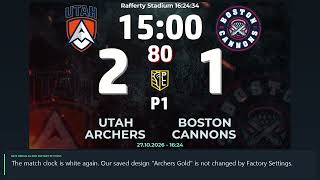 8:33
The board design editor of the arenaBoard7 lacrosse scoreboard: choose a screen and an element, edit Location and Style values, change a colour, Save & Apply, save the board as your own design, restore Factory Settings, pick a design in the gallery and open the editor of another display mode.
 7:02
Remote control and language settings of the arenaBoard7 lacrosse scoreboard: the phone remote over the local network with its link, QR code and PIN, the server switch, internet access, the HTTP API with live examples, the 46 program languages, editing translations and the titles printed on the board.
Follow the lessons on your own PC. The demo has every feature and shows only a small DEMO watermark.